The Title Bar will let you know about your workout
It will display Random Exercises Workout or Selected Exercises Workout if you choose to do Exercises.
For Circuit workouts, the Title Bar will display the name of the Circuit.
Navigation Bar
Skip will allow you to finish your workout without finishing all of the Exercises.
Any Exercises that have the checkbox marked will be considered completed, all other will be not completed.
Timer – Need the workout timer? Activate it here.
You will be presented with the Timer Setup since the timer was not activated by an Exercise card.
+ Icon – Enjoying the workout? Save it for later…
The Icon will change depending on what type of workout you are doing.
If doing an Exercise workout the Icon will become the Circuit Icon
If you are doing Circuits workout, the Icon will be a Circuit Set Icon
Tap the Icon to make that type of Record out of this workout
For example if you selected a Random Exercise workout and it became a great workout, tap the Circuit Icon and save this workout as a Circuit that you can select at another time.
Next/Done – The last item on the Navigation Bar will change between Next and Done.
It will be Next if there is another screen of Exercises todo.
This happens if you selected more than one Circuit.
It will be Done when the current Workout screen is your last exercises of the workout.
Select Done when you have finished all of the Exercises.
Any Exercise that did not have the checkbox marked will also be assumed to have been completed.
If you do not want the unfinished Exercises completed, use the Skip instead.
Let’s Warm Up
This is your list of Warmup Exercises to do.
Do these before you begin your Exercises.
And now the fun begins
These are your Exercises for this Workout.
Do your Exercises as described on the Exercise Card
Round Robins
If a Circuit is marked with Rounds Overrides Sets, then this will be a Round Robin Workout
Do your exercises in order one after another, one set each.
When complete, repeat another round of exercises.
Do this until you have done the number of Rounds.
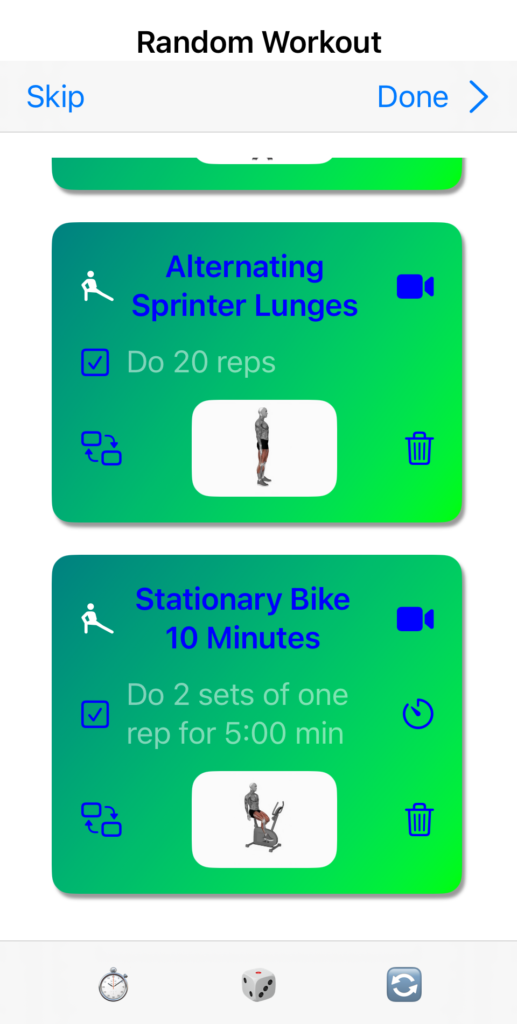
Warmup & Exercise Cards
Exercise Name
Press and hold the Exercise Name to bring up the Exercise Detail Sheet
From here you can see the details about the exercise.
You can adjust the workout parameters of the Exercise.
The Workout
Under the name of the Exercise is your workout for that Exercise.
Icon
The icon to the left of the Exercise name represents the difficulty level of the Exercise – Warmup, Light, Medium, Heavy or Advanced
Video
If a video of the Exercise is available the video camera will be filled in.
Press the camera to watch the video.
The video is presented on a “sheet”, swipe down when you are done viewing the video.
Checkbox
When you complete the exercise you can put a check on it.
When you exit this workout, either pressing Done or Skip, All In Fitness keeps track of what you compeleted
If you press Done and you have not checked all the Exercises, All In Fitness will assume you completed all of the Exercises.
This is so you do not have to use the checkboxes if you do not want to.
If you press Skip, All In Fitness will give you credit for the Exercises that you checked the boxes for.
Timer
This icon is available if the exercise uses a timer for the Exercise and/or Rest.
If available, the timer will be preset with the workout parameters of the Exercise.
If there is no timer but you would like to use one, click on the Timer in the Navigation Bar
Swap Out
This allows you to change your exercise on the fly.
The Exercise will by of the same Type as defined by Type field of the Exercise
Press and hold the Exercise name to bring up the Exercise Detail Sheet
Here you can see what the Exercise’s Type is
The Exercise that is swamped out will be of any Level
The Exercise icon will show the new Exercise’s level
Too high? Swap again…
Delete
When Swap Out doesn’t work, there is always a way…